Unity tool · Made at TravelBug Games

Your game's UI flow,
drawn as a graph

StateFlow is a visual state machine for Unity UI. Lay out every screen, popup and alert on one canvas, wire them together with type-safe triggers, and watch the flow run live while you play.
Built for Unity 6 · Runs every TravelBug game

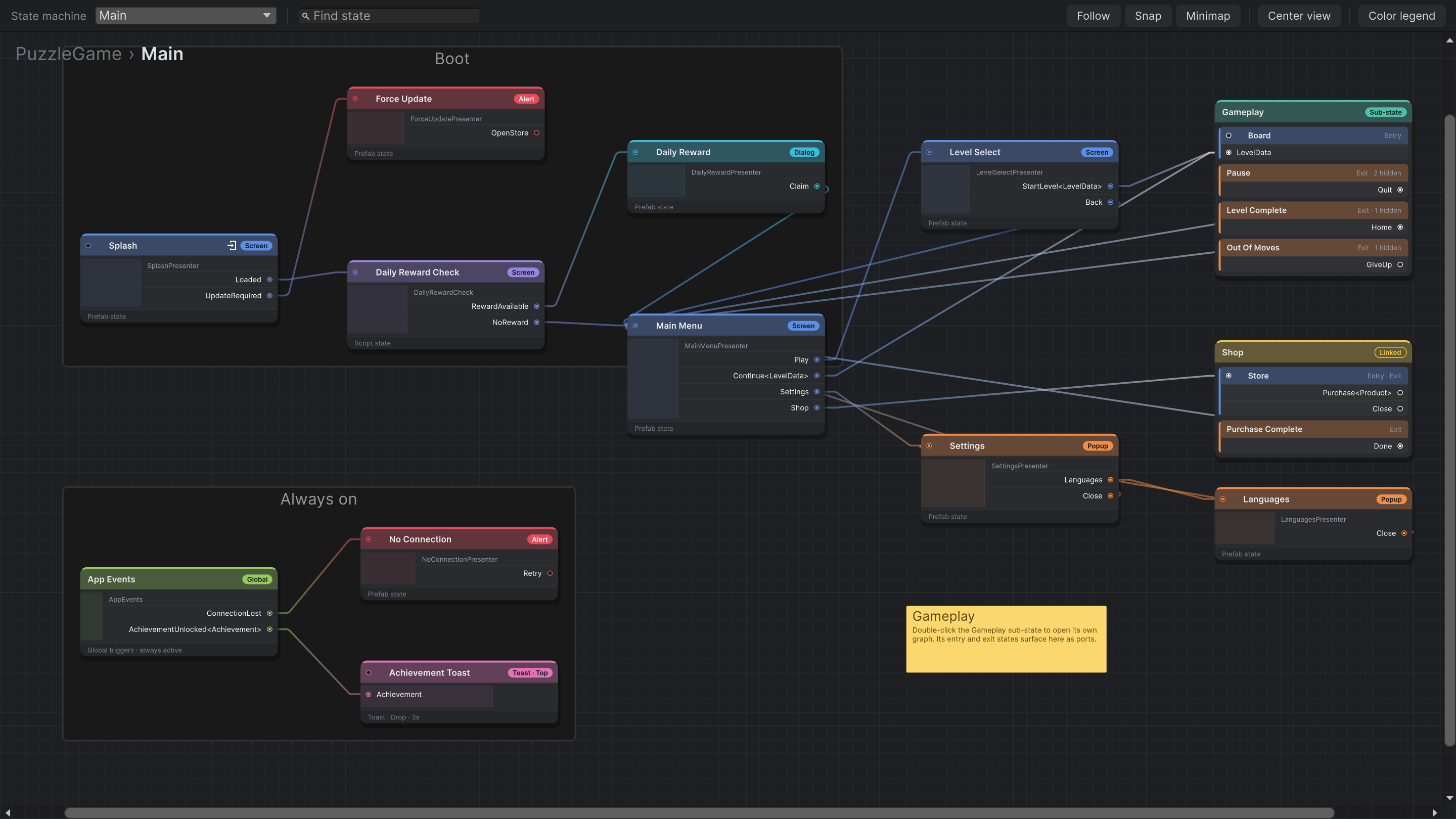
StateFlow Editor — PuzzleGame
The StateFlow editor showing a puzzle game's flow: Splash, Daily Reward Check, Main Menu, Level Select and Settings states connected by transitions, a Gameplay sub-state, a linked Shop machine, and an 'Always on' group with global triggers, a toast and an alert.
A complete game front end on one canvas: screens, popups and alerts, a sub-state machine, a linked Shop asset, and app-wide events.
Triggers become ports

Your code declares the exits. The graph does the wiring.

Add a Trigger event to a state's script and it appears on the node as an output port. Drag it onto another state and that's the transition. No string IDs, no hand-written switch statements.
  • Pick a transition script per connection: fade, slide, scale, or any animation you write.
  • Click any wire to see its route and change how it plays.
  • Rename a trigger in code and the editor tells you which transitions need reconnecting.
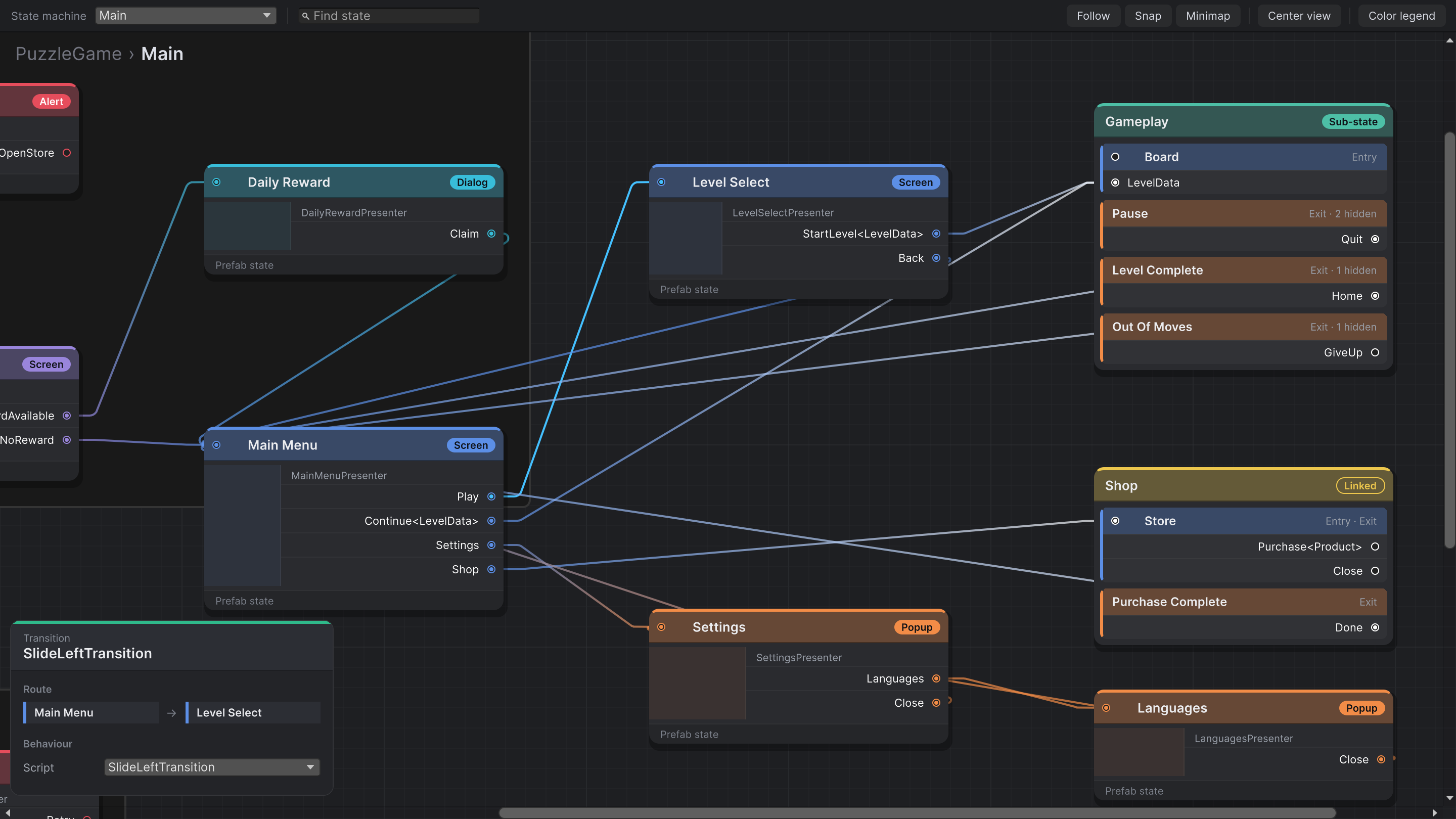
Transition inspector
Main Menu's Play trigger is wired to Level Select. The selected transition is highlighted and the inspector shows the route Main Menu to Level Select using SlideLeftTransition.
Typed payloads

Pass data between screens, and see it on the wire.

A Trigger<LevelData> can only connect to a state that accepts LevelData, so a wrong connection never makes it into your game.

In play mode, the transition that fired last carries a running marker and a chip showing the value it passed. Here, Level Select just started Level 12 · Hard.
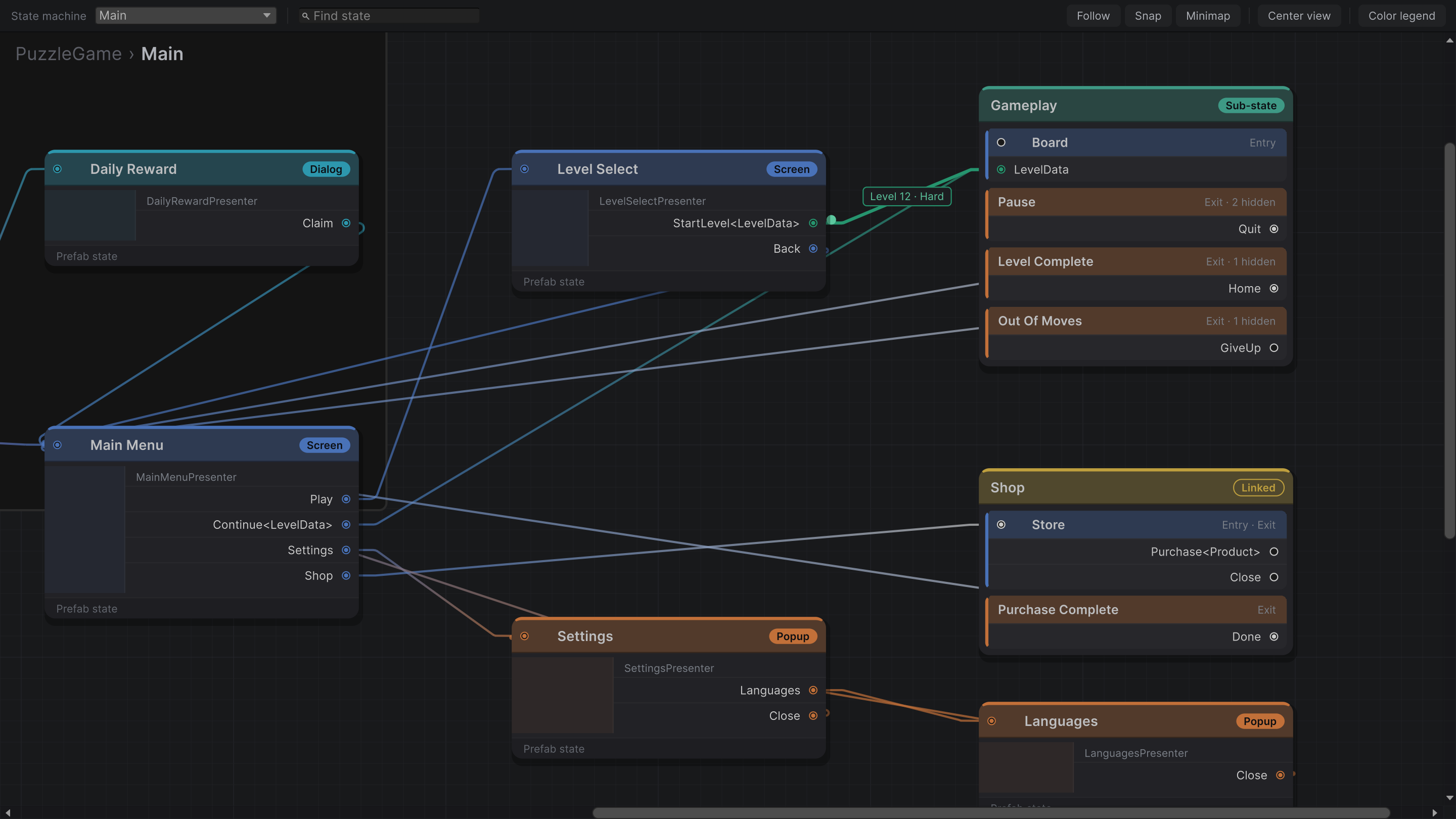
Play mode
In play mode, the StartLevel<LevelData> transition from Level Select into the Gameplay sub-state is lit green with an animated marker and a payload chip reading 'Level 12 · Hard'.
Sub-states & linked machines

Big flows fold into neat boxes.

Group related states into a sub-state machine and it collapses to a single node. Its entry and exit states show up as ports on the parent graph. Double-click to open it, and use the breadcrumb to step back out.
  • Linked machines: reuse a whole flow (like a Shop) from another StateFlow asset.
  • Hide exit ports that only matter inside the sub-state, so the parent graph stays clean.
  • Spawned states: triggers on prefabs a state spawns at runtime still appear as ports on its node.
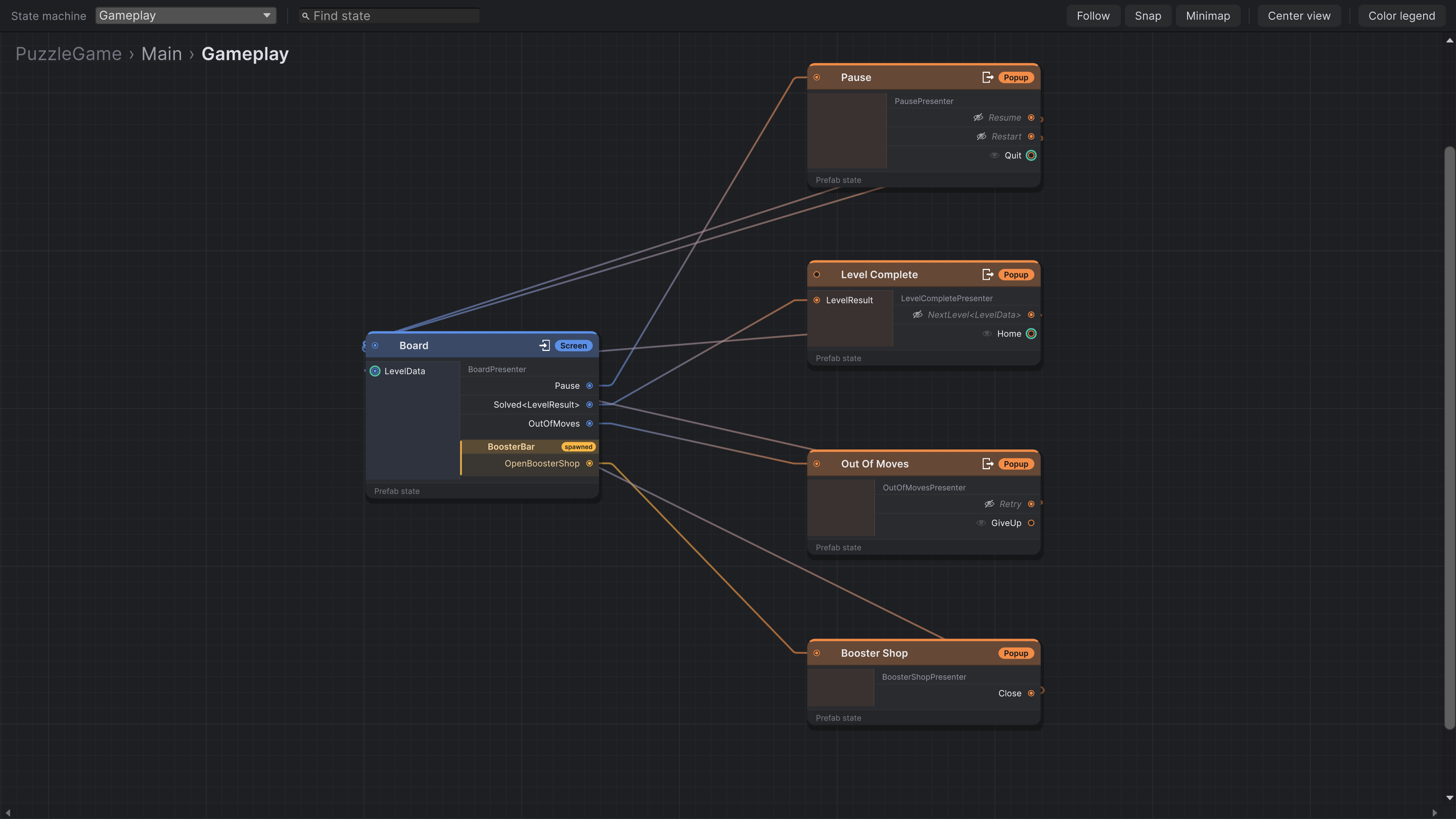
PuzzleGame › Main › Gameplay
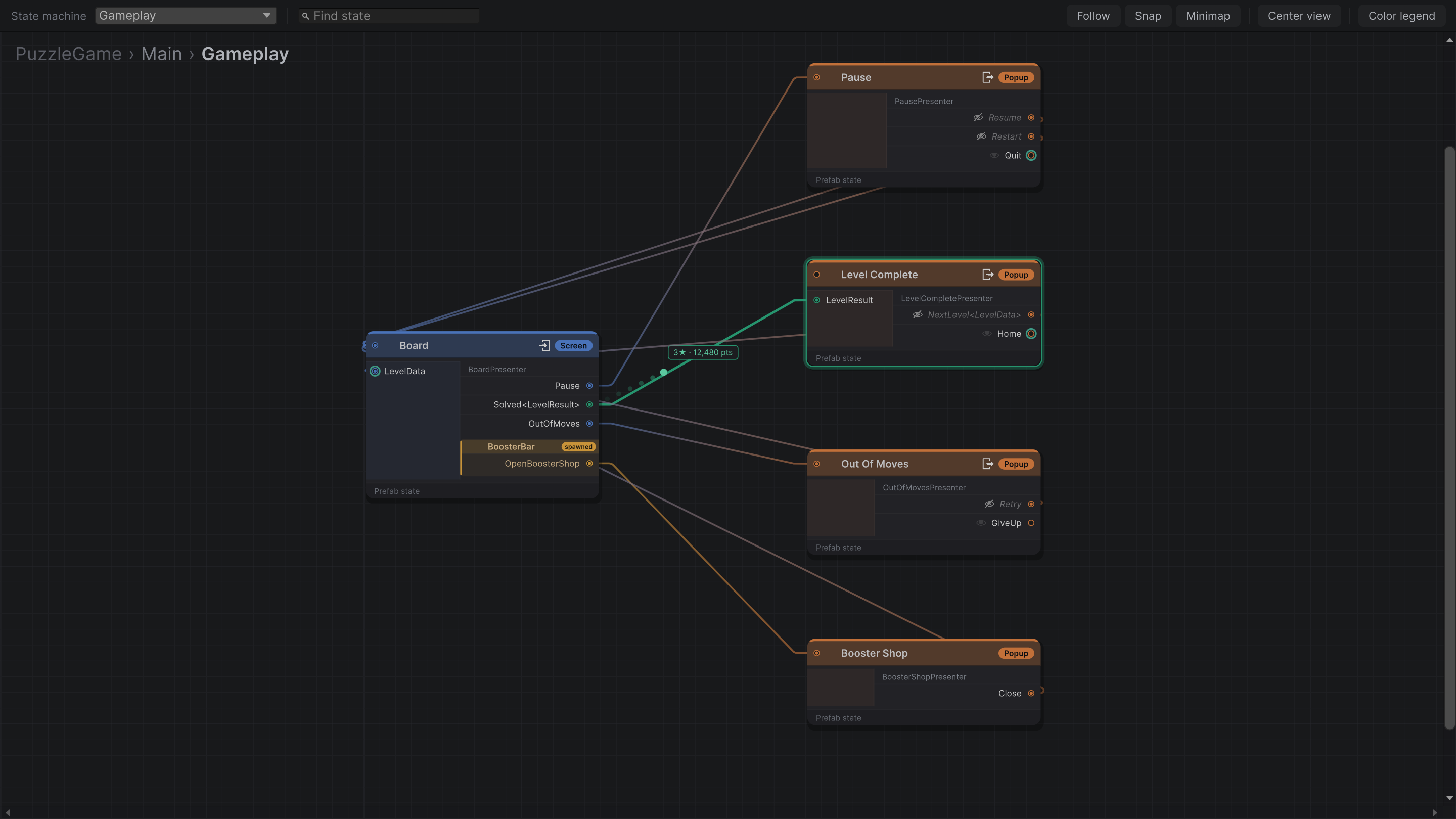
The Gameplay sub-state machine: Board connects to Pause, Level Complete, Out Of Moves and a Booster Shop popup. A spawned BoosterBar section adds an OpenBoosterShop port to Board, and exit states show hidden and parent-connected ports.
Toasts & global triggers

Handle app-wide events on the same graph.

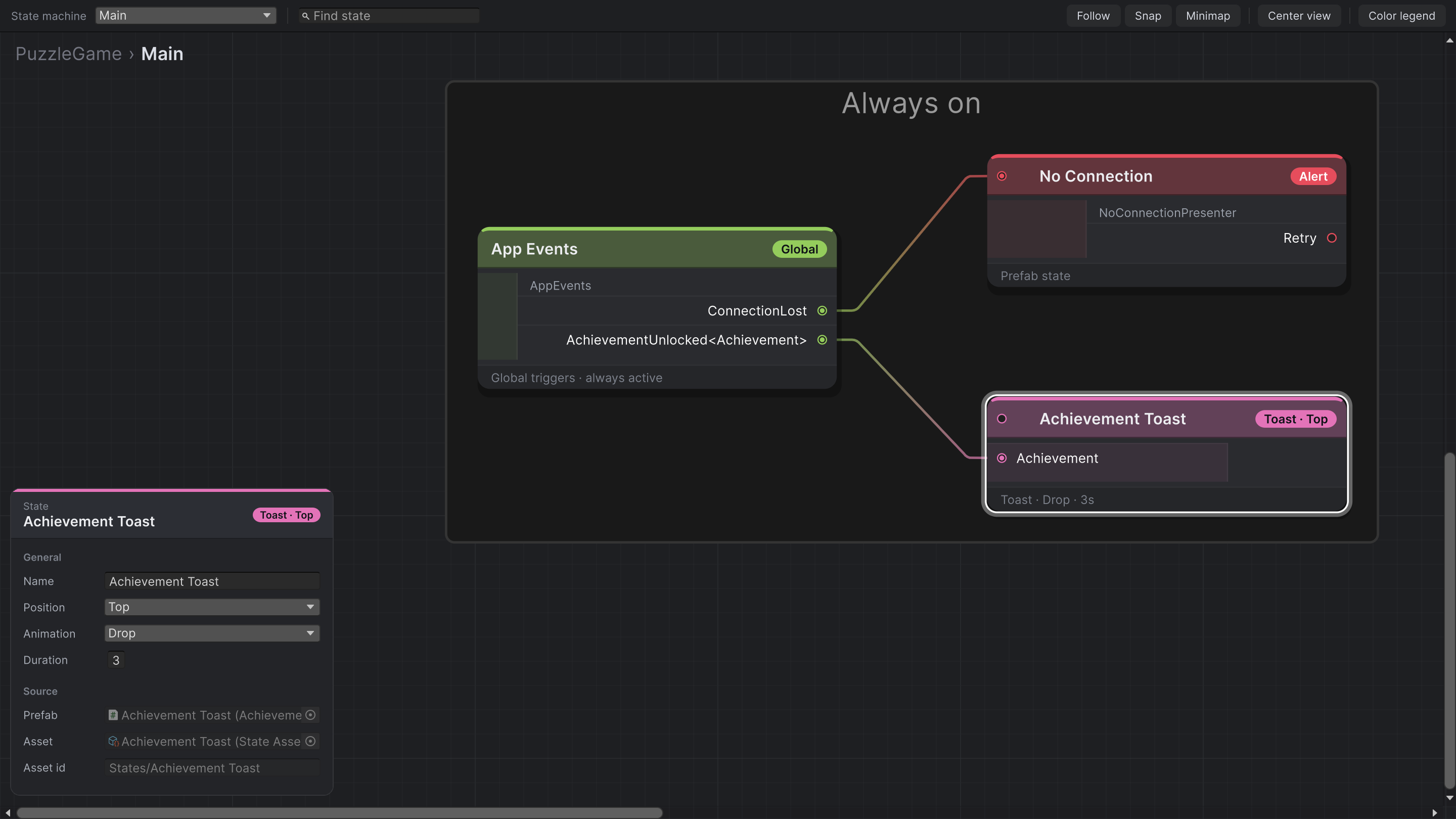
A connection drops or an achievement unlocks, and it doesn't matter which screen is showing. Global trigger nodes stay live the whole time. Fire one from anywhere with one static call and route it to an alert or a toast.

Toasts sit outside the screen stack, with their own position, animation (Drop, Raise, Slide, or your own) and duration. You set all of it right in the graph.
Screen Popup Dialog Alert Toast Global triggers
State inspector
An 'Always on' group: the App Events global triggers node routes ConnectionLost to a No Connection alert and AchievementUnlocked<Achievement> to an Achievement Toast. The inspector shows the toast's position, Drop animation and 3-second duration.
Live debugging

Watch your game move through the graph.

Press Play and the graph comes alive. The active state lights up, the last transition animates, and its payload is right there on the wire. Turn on Follow and the view keeps the active state in frame. If that state is inside a sub-state, the view keeps the sub-state's node in frame.

Here the player just solved a level. Board fired Solved<LevelResult>, and Level Complete is now active with 3★ · 12,480 pts.
Play mode — Gameplay
In play mode inside the Gameplay sub-state, Level Complete is outlined as the active state and the Solved<LevelResult> transition from Board carries a payload chip reading '3★ · 12,480 pts'.
Made for big graphs

Find your way around, even with hundreds of states.

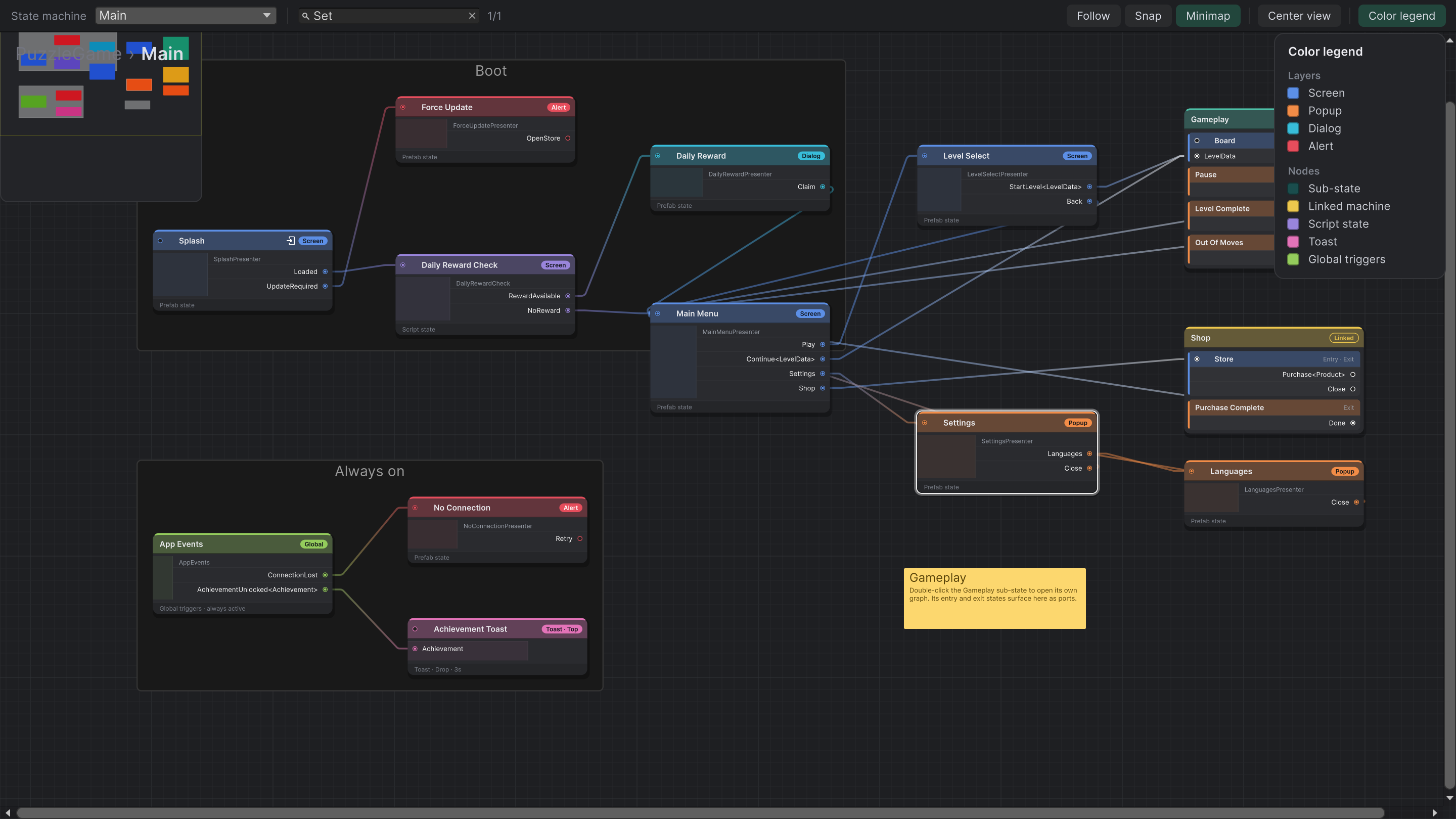
  • Find state: type to jump to a state, then press Enter to step through the matches.
  • Minimap and Center view so you never lose your place.
  • Groups and sticky notes to label the parts of your flow.
  • Align, distribute and snap to grid for tidy layouts.
  • Copy, paste, duplicate and full undo for every edit.
  • Colour legend so anyone on the team can read a graph at a glance.
Search, minimap & legend
The StateFlow toolbar search has found the Settings state and highlighted it, with the minimap open top-left and the colour legend listing layers (Screen, Popup, Dialog, Alert) and node types (Sub-state, Linked machine, Script state, Toast, Global triggers).

From script to running flow in three steps

Plain C#. No code generation, no magic strings.

Write a state

Derive from StateFlowComponent and declare a Trigger event for each way out of the screen.

Add it to the graph

Drop in a prefab, or use a script for logic-only states. Then choose its layer and mark the entry and exit states.

Connect and press Play

Drag from port to port. A StateFlowManager in your scene runs the asset, loading states through Resources or Addressables.

LevelSelectPresenter.csC#
public class LevelSelectPresenter : StateFlowComponent
{
    public event Trigger<LevelData> StartLevel;   // port: StartLevel<LevelData>
    public event Trigger Back;                    // port: Back
}

public class BoardPresenter : StateFlowComponent, IStateFlowComponentWithPayload<LevelData>
{
    [SpawnedState, SerializeField] private BoosterBar boosterBar; // its triggers show on this node too

    public event Trigger<LevelResult> Solved;
    public event Trigger Pause;

    public void SetPayload(LevelData level) { /* build the board */ }
}

// App-wide events, raised from anywhere
AppEvents.RaiseConnectionLost();

Scripted transitions

Write your own transition class to animate between any two states, with underlay and overlay layers to work with.

Clear lifecycle

Every state gets Initialize, Enter, TransitionFinished, Exit and Dispose, so set-up and clean-up always run in a predictable order.

Built-in validation

If a prefab loses a component or a trigger gets renamed, the broken transitions show up in a panel instead of failing quietly.

Coming soon to the Unity Asset Store

StateFlow runs the screens in every TravelBug game, and soon you'll be able to use it in your own Unity projects too.

Read the documentation →

← See the games it powers