The StateFlow Editor
Toolbar, context menu, groups, notes and the live play-mode view.
The StateFlow Editor is where the flow is built. Open it from the StateFlow Editor button on a StateFlow Manager or StateFlow Asset, or by double-clicking a StateFlow Asset.
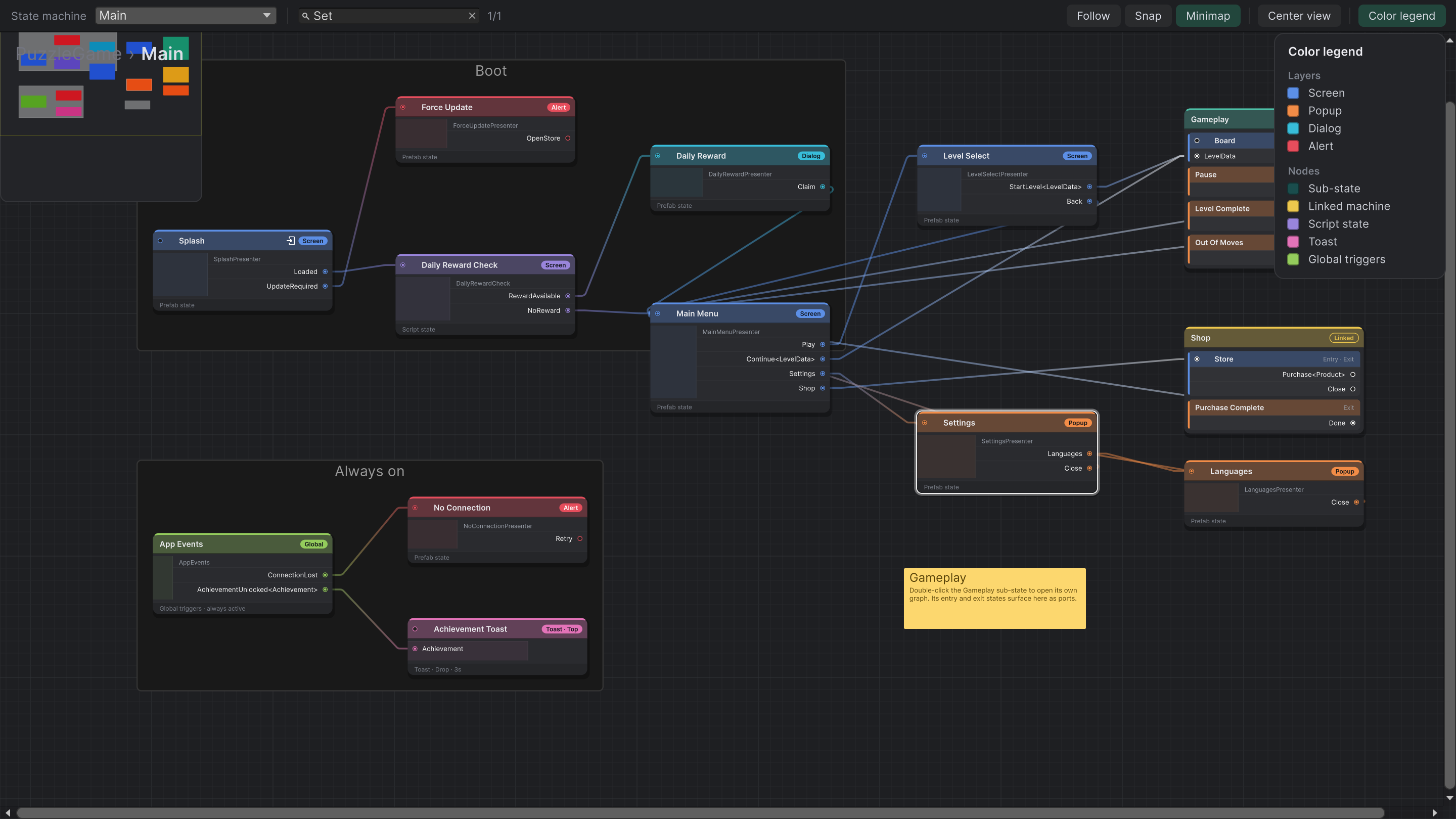
Toolbar
| Control | Does |
|---|---|
| State machine | Switches between the main machine and its sub-state machines. |
| Find state | Finds a state by name. Enter steps through the matches. |
| Follow | In play mode, keeps the active state in view. |
| Snap | Snaps moved nodes and notes to the grid. |
| Minimap | Shows an overview of the whole graph, coloured by node type. |
| Center view | Brings every state back into view. |
| Color legend | Explains what the node colours mean. |
Below the toolbar, the breadcrumb shows the asset and the machine you are in. Click a parent to go back up. The info panel on the left shows whatever is selected: a state, a sub-state or a transition.
Node types and colours
Context menu
Right-click the graph:
| Item | Does |
|---|---|
| Create › New › State | A prefab state. How to |
| Create › New › Sub-State | A new sub-state machine. Sub-states |
| Create › Existing › States / Sub-States | Another node for a state or machine that already exists in this asset |
| Create › Script State | A logic-only state. Script states |
| Create › Toast | A toast. Toasts |
| Create › Global Triggers | An app-wide triggers node. Global triggers |
| Create › Linked State Machine | A machine from another StateFlow Asset. Linked machines |
| Replace › … | Swaps the clicked node for a new or existing one |
| Create Group, Group Selection, Remove From Group | Frames related nodes under a title |
| Add Sticky Note | A note for explanations and to-dos |
| Align › … | Lines up the selected nodes |
| Duplicate | Copies a sub-state machine with its states and transitions |
| Select Asset, Select Prefab | Selects the state's State Asset or prefab in the Project window |
| Delete | Removes the selection (also Delete or Backspace) |
Edits in the graph support Undo and Redo.
Groups and notes
Groups and sticky notes have no effect at runtime. They are there to make a big graph readable. The samples use notes to explain what each graph demonstrates, and an "Always on" group to collect global triggers and the alerts and toasts they lead to.
Play mode
While the game runs, the graph shows the flow live:
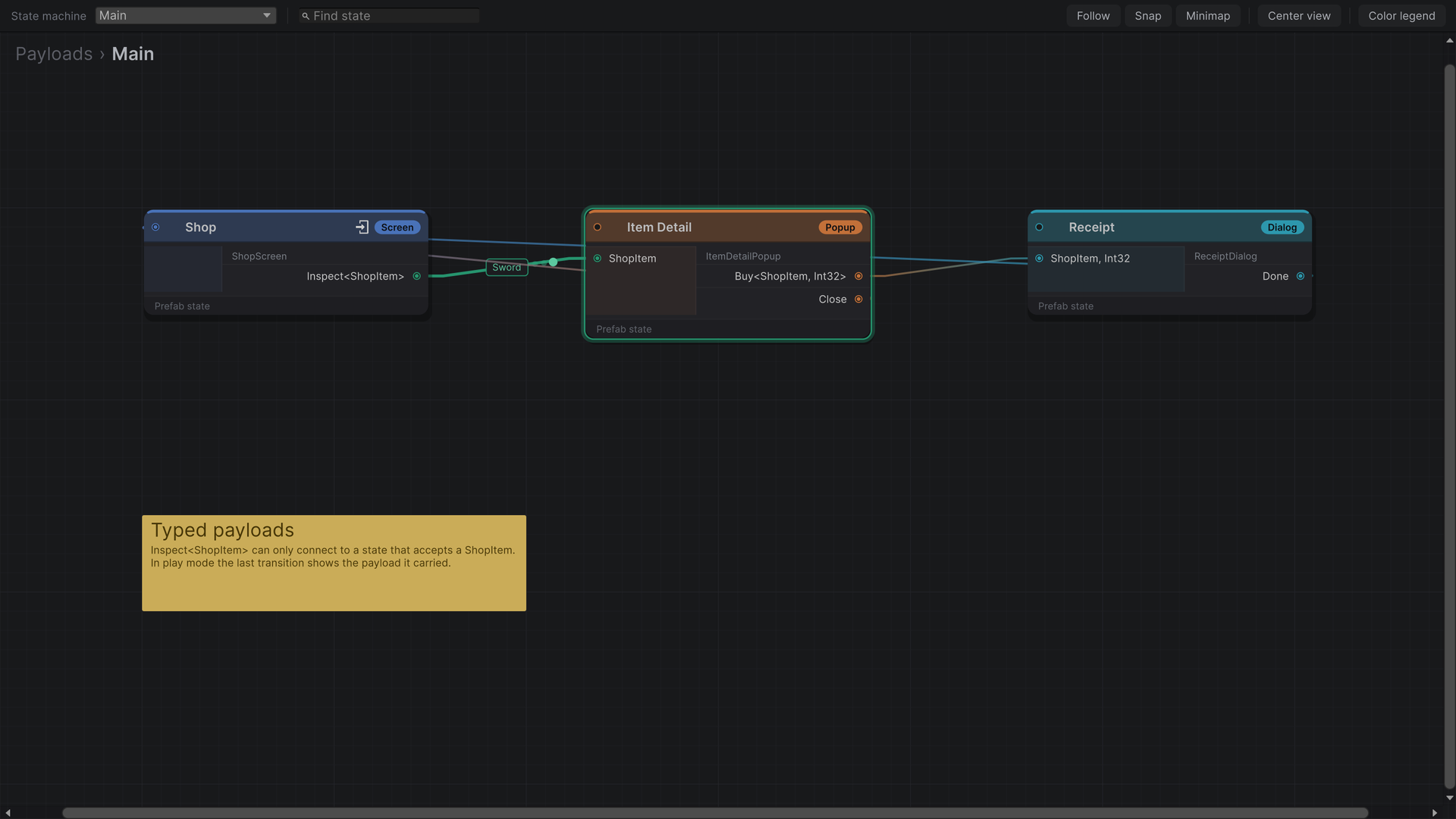
- The active state is highlighted.
- The last transition is lit, with a moving marker along it.
- If it carried a payload, a chip on the wire shows the value. Override
ToString()on payload types to make it readable.