
Resources & Addressables
How states are loaded, and how to switch between loaders.
Prefab states and toasts aren't referenced directly by the graph. Each one has a small State Asset that points at its prefab, and StateFlow loads that asset when the flow first needs the state. That keeps unused screens out of memory, and lets the same graph load from Resources or Addressables.
Choosing a loader
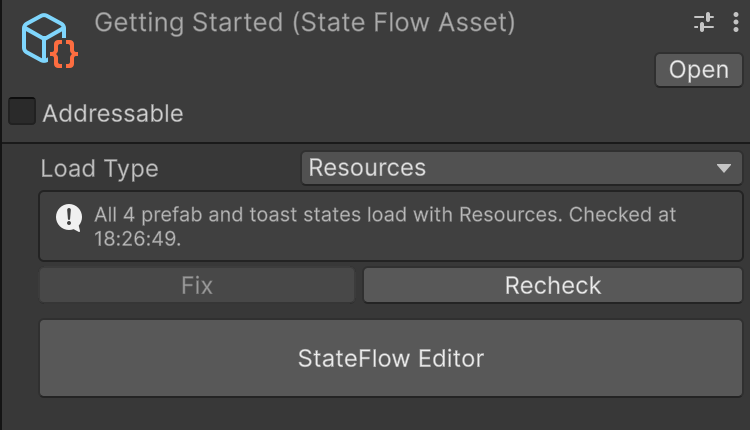
Set Load Type on the StateFlow Asset's inspector.
| Load Type | State Assets must be | Good for |
|---|---|---|
| Resources (default) | Inside any Resources folder | Getting started, small projects, prototypes |
| Addressables | Addressable, in a group that is built into bundles, included in the build and includes GUIDs in the catalog. Not in a Resources folder. | Shipping games, downloadable content, memory control |
State Assets
Creating a prefab state or toast in the editor asks where to save its State Asset. With Resources loading, save it inside a Resources folder. With Addressables, save it anywhere else; StateFlow makes it Addressable in your default group.
The graph stores a key to find each State Asset by: its path inside the Resources folder for Resources, or its GUID for Addressables. GUID keys survive moving, renaming and readdressing the asset.
Switching load type
Change Load Type on the StateFlow Asset and StateFlow rewrites every state's key for the new loader, and brings linked assets along. The inspector then lists anything the new loader still can't reach:
- Moving to Addressables: Fix makes the remaining State Assets Addressable. Assets still inside
Resourcesfolders are reported as a warning: StateFlow still loads them, straight from Resources, but they ship in the player's Resources data instead of in bundles. Move them out to bundle them. - Moving to Resources: move each listed State Asset into a
Resourcesfolder.
Addressables group settings
StateFlow loads states by GUID, so the group a State Asset is in must keep GUIDs in the catalog. The inspector reports a group that:
- is not built into bundles (it has no Bundled Asset Group Schema),
- is excluded from the build, or
- has Include GUIDs in Catalog turned off.
Example: moving a flow to Addressables
This takes a flow that loads from Resources, such as one built from the samples, and runs it from Addressables bundles.
- Switch the load type. Select the StateFlow Asset and set Load Type to Addressables. StateFlow rewrites every state's key to its State Asset's GUID.
- Move the State Assets out of Resources. For example, move the folder
Resources/StateFlowSamples/01toUI/States/Getting Started. The keys are GUIDs, so the graph keeps working after the move. - Click Fix. StateFlow creates the Addressables settings if the project has none, and makes every State Asset Addressable in your default group. Recheck should now report that every state loads with Addressables.
- Organise the groups (optional). In Window › Asset Management › Addressables › Groups, you can move the State Assets into a group of their own, such as UI States, and give them a label, such as
ui. Keep Include GUIDs in Catalog turned on for that group. - Press Play. With the Groups window's Play Mode Script set to Use Asset Database, states load straight from the project. To test real bundles, choose Build › New Build › Default Build Script, then switch Play Mode Script to Use Existing Build.
- Build the player. Addressables builds its content along with the player unless Build Addressables on Player Build is turned off in its settings. If it is, build the content first.
The prefab a State Asset points at goes into the same bundle, or into a bundle the State Asset depends on, so you don't need to make the prefabs Addressable yourself.
Addressables loads asynchronously, so the entry state appears a frame or more after the StateFlow Manager's Awake, not during it. Don't assume a state exists right after the scene loads. Wait for its Enter, or watch the state observer. A trigger raised while a state is still loading, from a global trigger, a toast or spawned content, waits and runs once that state is shown.
Downloading remote states before the flow starts
If your UI groups are hosted remotely, download them before the StateFlow Manager starts, so the first screen doesn't wait on the network. Leave the manager's GameObject inactive in the scene and switch it on once the download finishes. This example downloads everything labelled ui:
using UnityEngine;
using UnityEngine.AddressableAssets;
using UnityEngine.ResourceManagement.AsyncOperations;

public class UIDownloader : MonoBehaviour
{
    [SerializeField] private GameObject stateFlowManager; // inactive in the scene
    [SerializeField] private string label = "ui";

    private async void Start()
    {
        var size = Addressables.GetDownloadSizeAsync(label);
        long bytes = await size.Task;
        Addressables.Release(size);

        if (bytes > 0)
        {
            var download = Addressables.DownloadDependenciesAsync(label);
            await download.Task;

            if (download.Status != AsyncOperationStatus.Succeeded)
            {
                Debug.LogError($"Downloading '{label}' failed: {download.OperationException}");
                Addressables.Release(download);
                return;
            }

            Addressables.Release(download);
        }

        stateFlowManager.SetActive(true); // Awake runs now and loads the entry state
    }
}
To show progress, poll download.PercentComplete or download.GetDownloadStatus() while it runs. States that are already downloaded load from the local cache, so the flow itself needs no changes.
Linked assets
A linked machine is loaded with the load type of the asset that links it. The inspector of the linking asset checks the linked asset's states too, and flags a linked asset set to a different load type.
Unloading
When a state is destroyed, its State Asset is released through the same loader: Resources.UnloadAsset or Addressables.Release.
The samples use Resources so they work in any project with no Addressables setup. Each sample keeps its State Assets under Resources/StateFlowSamples/<sample>.
See Validation & build checks for the check that runs before every player build.