
Layers
How Screen, Popup, Dialog and Alert states stack, replace and close.
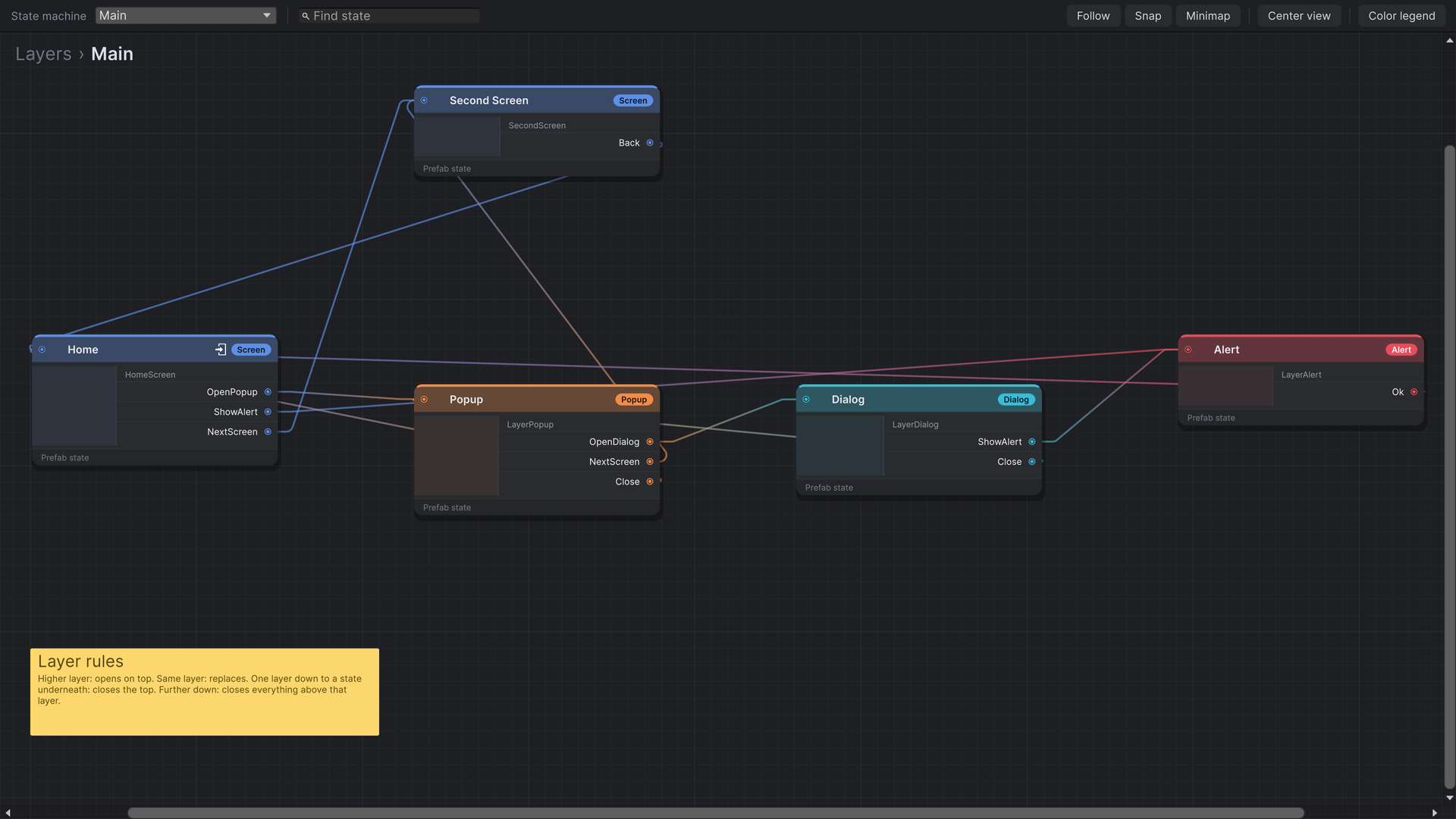
Every prefab state sits on one of four layers. The layer decides two things: which container the state is spawned into, which sets what it draws on top of, and what happens to the current state when the flow moves to it.
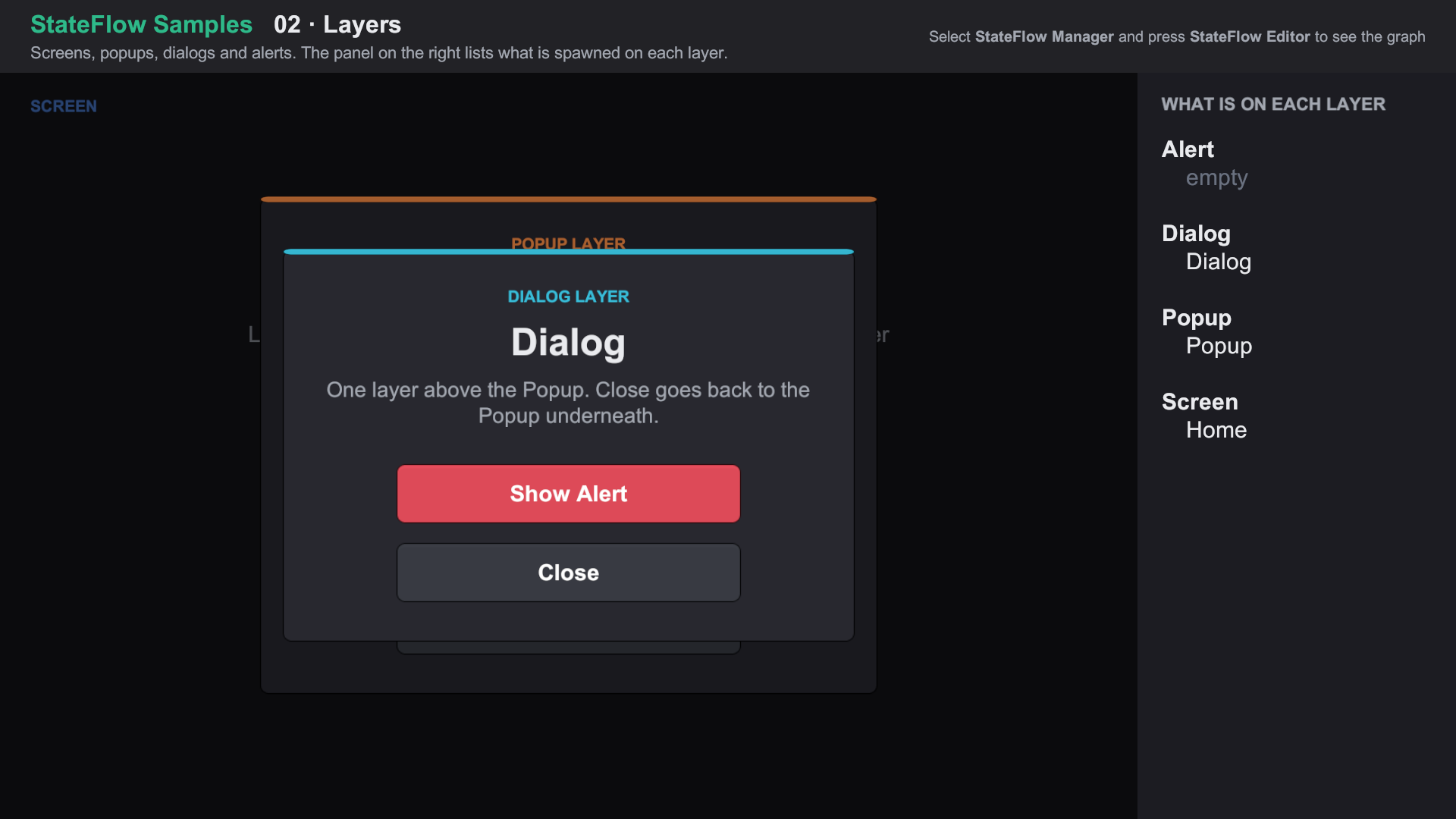
From bottom to top: Screen for full-screen views, Popup for panels opened over a screen, Dialog for questions asked over a popup, and Alert for anything that must interrupt, like a lost connection. The names are a convention. The only thing that matters to StateFlow is the order.
The rules
When a transition fires, StateFlow compares the next state's layer with the layer of the state on top:
| Next state is… | What happens | Example |
|---|---|---|
| On a higher layer | It opens on top. The current state stays on screen, but it is exited and its triggers stop working until it is active again. | Main Menu → Settings popup |
| On the same layer | It replaces the current state, which is destroyed. | Main Menu → Level Select |
| One layer down, and already open underneath | The state on top closes, and the one underneath becomes active again. | Settings popup → back to Main Menu |
| One layer down, but not open | The state on top closes, then the state underneath is replaced by the new one. | Popup → a different Screen |
| More than one layer down | Everything above that layer closes, then the state on that layer is replaced. If no state is open on that layer yet, the new state opens on top instead. | Alert → Home closes the dialog and popup too |
Closing a popup is just a transition back to the state underneath. There is no separate "close" or "back" API: draw a connection from the popup's Close trigger to the screen it opened over.
A "back" transition should lead to the state that is actually underneath. If a popup can open over two different screens, give it a trigger for each, or use a script state to choose. Otherwise its single Close transition replaces whichever screen is underneath with the one it points to.
Containers
Each layer is a RectTransform under the StateFlow Manager. States are spawned as its children, so later layers draw on top of earlier ones. Use stretched prefabs for full-screen states. A popup prefab usually has a stretched, semi-transparent backdrop that also blocks clicks on the screen below, with the card centred inside it.
The containers are available from code through the manager's Layers:
using StateFlow.Runtime.Components.Designer.Impl;
using StateFlow.Runtime.Types;
using UnityEngine;

public class LayerStackView : MonoBehaviour
{
    [SerializeField] private StateFlowManager manager;

    private void Update()
    {
        foreach (var layer in new[] { Layer.Alert, Layer.Dialog, Layer.Popup, Layer.Screen })
        {
            RectTransform container = manager.Layers.GetLayerContainer(layer);
            // container.childCount states are open on this layer.
        }
    }
}Import Feature Samples from the Package Manager and open 02 Layers/02 Layers.unity. About the samples
Layers and other node types
- Script states have no layer. They run on top of whatever is showing.
- Toasts have no layer either. They show in the toast containers, outside the layer rules, and never cover or replace a state.
- Global triggers are not views at all. Their transitions follow the rules above, judged against the state on top.