
Getting started
Install the package, set up a scene and run your first flow.
Install
- Get StateFlow from the Unity Asset Store.
- In Unity, open Window › Package Manager, go to My Assets, select StateFlow and press Install.
- The Package Manager installs StateFlow's dependencies, uGUI and Addressables, at the same time.
To try StateFlow before building anything, open the Samples tab on the same Package Manager page and import Feature Samples. See what's in them.
Set up the scene
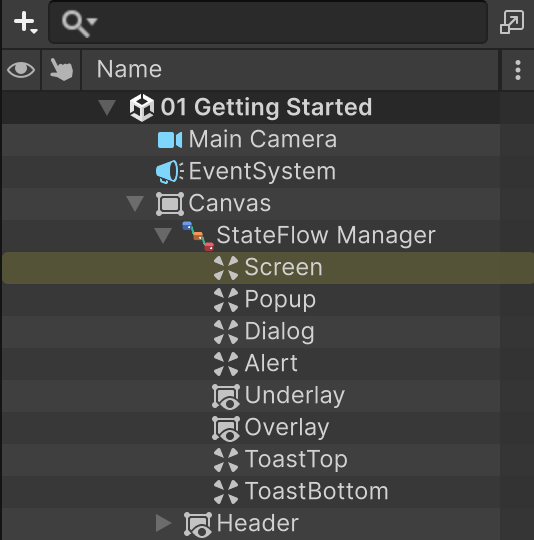
A StateFlowManager runs one graph. It lives on a UI object under a Canvas, and it spawns each state into one of four layer containers below it.
- Create a Canvas: GameObject › UI › Canvas. A Canvas Scaler set to Scale With Screen Size works well.
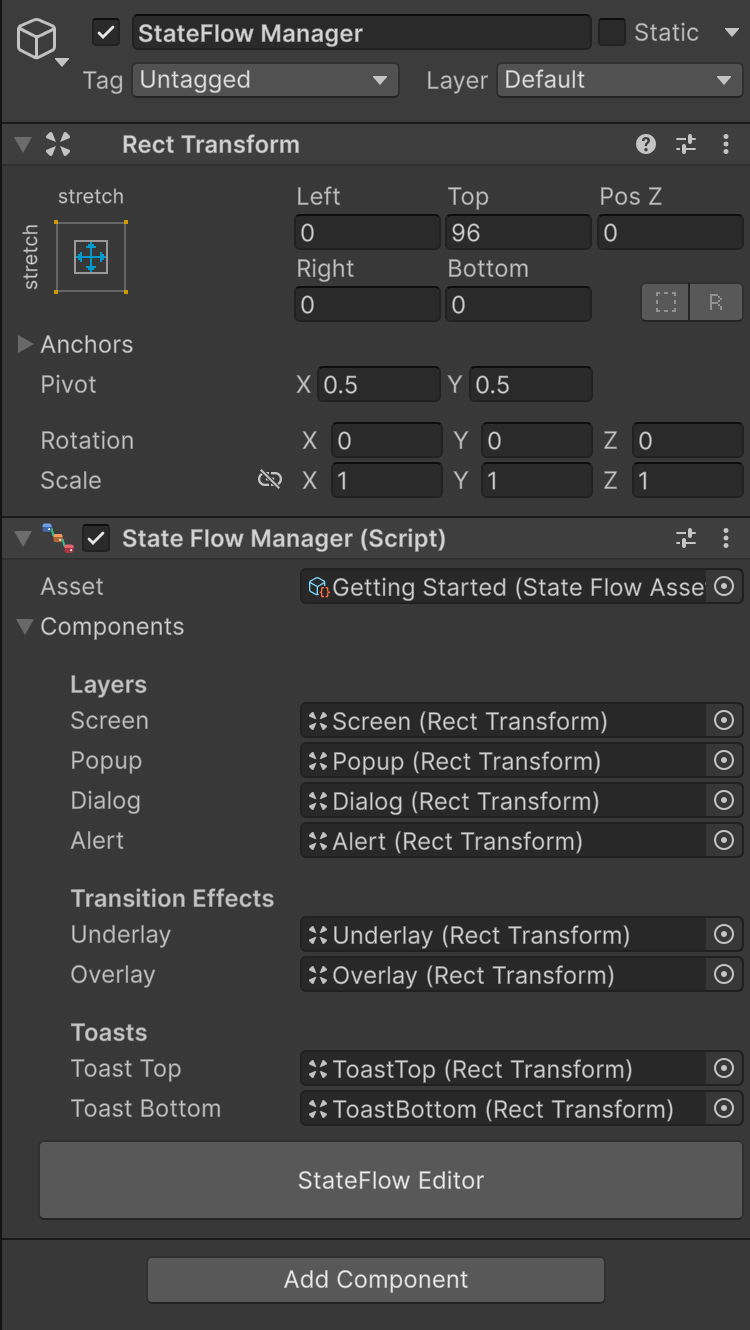
- Under the Canvas, create an empty UI object (it needs a RectTransform), stretch it to fill the Canvas and name it
StateFlow Manager. - Under it, add four stretched children named
Screen,Popup,DialogandAlert, in that order. - Optionally add
UnderlayandOverlay(for transition effects), thenToastTopandToastBottomlast (for toasts). - Add the StateFlow Manager component to the
StateFlow Managerobject. It finds the containers by name. You can also assign them by hand under Components.
Create the graph
The graph is stored in a StateFlow Asset. With no asset assigned, the manager's inspector offers a Create StateFlow Asset button. You can also use Assets › Create › StateFlow › StateFlow Asset and assign it yourself.
Press StateFlow Editor on the manager or the asset, or double-click the asset, to open the graph.
Write your first state
A state is a prefab with a StateFlowComponent on its root. Declare a Trigger event for each way out of the screen and invoke it when the player chooses that way:
using StateFlow.Runtime.Components.State;
using StateFlow.Runtime.Delegates;
using UnityEngine;
using UnityEngine.UI;

public class MainMenuScreen : StateFlowComponent
{
    [SerializeField] private Button playButton;
    [SerializeField] private Button settingsButton;

    public event Trigger Play;
    public event Trigger Settings;

    public override void Initialize()
    {
        playButton.onClick.AddListener(() => Play?.Invoke());
        settingsButton.onClick.AddListener(() => Settings?.Invoke());
    }
}
Build the screen as a stretched UI prefab, put the component on its root and assign the buttons.
Add states to the graph
- Right-click the graph and choose Create › New › State.
- Give it a name, pick its layer, drag in the prefab and press Create.
- Choose where to save its State Asset, the small asset StateFlow loads the prefab through. With the default Resources loading, save it inside a
Resourcesfolder. More on loading. - Tick Entry State on the state the game should start with. Each graph has exactly one.
Connect and press Play
Each trigger is an output port on the right of its node. Drag from a port to another state to create a transition. Press Play: the manager shows the entry state, and each trigger you invoke moves the flow along its transition.
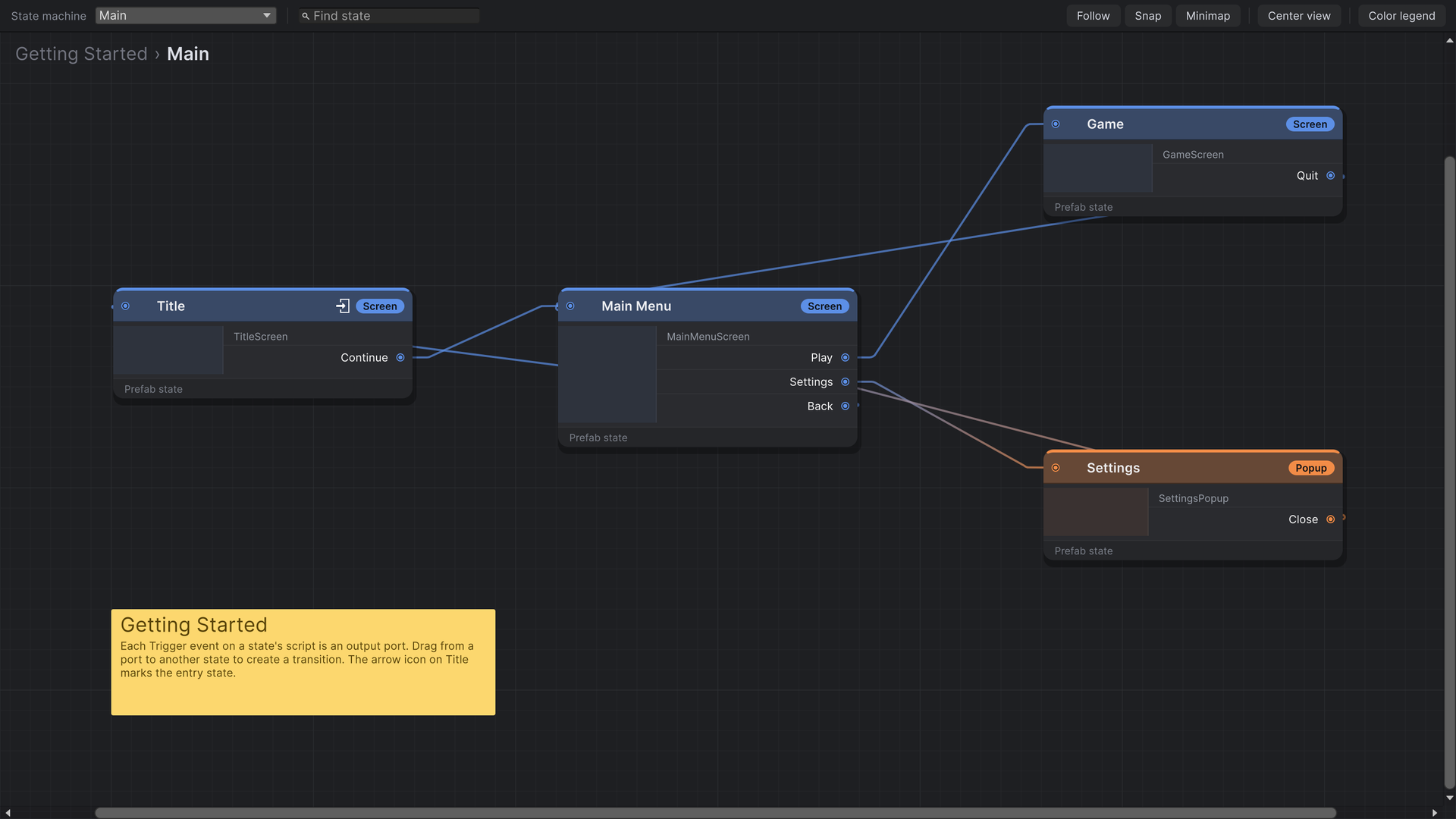
Import Feature Samples from the Package Manager and open 01 Getting Started/01 Getting Started.unity. About the samples
Next steps
- States & triggers: what a node shows and how its ports are built.
- Layers: what happens to the current state when the next one opens.
- Payloads: send data along a transition.